Follow the steps below to send email from your own address inside Gmail.
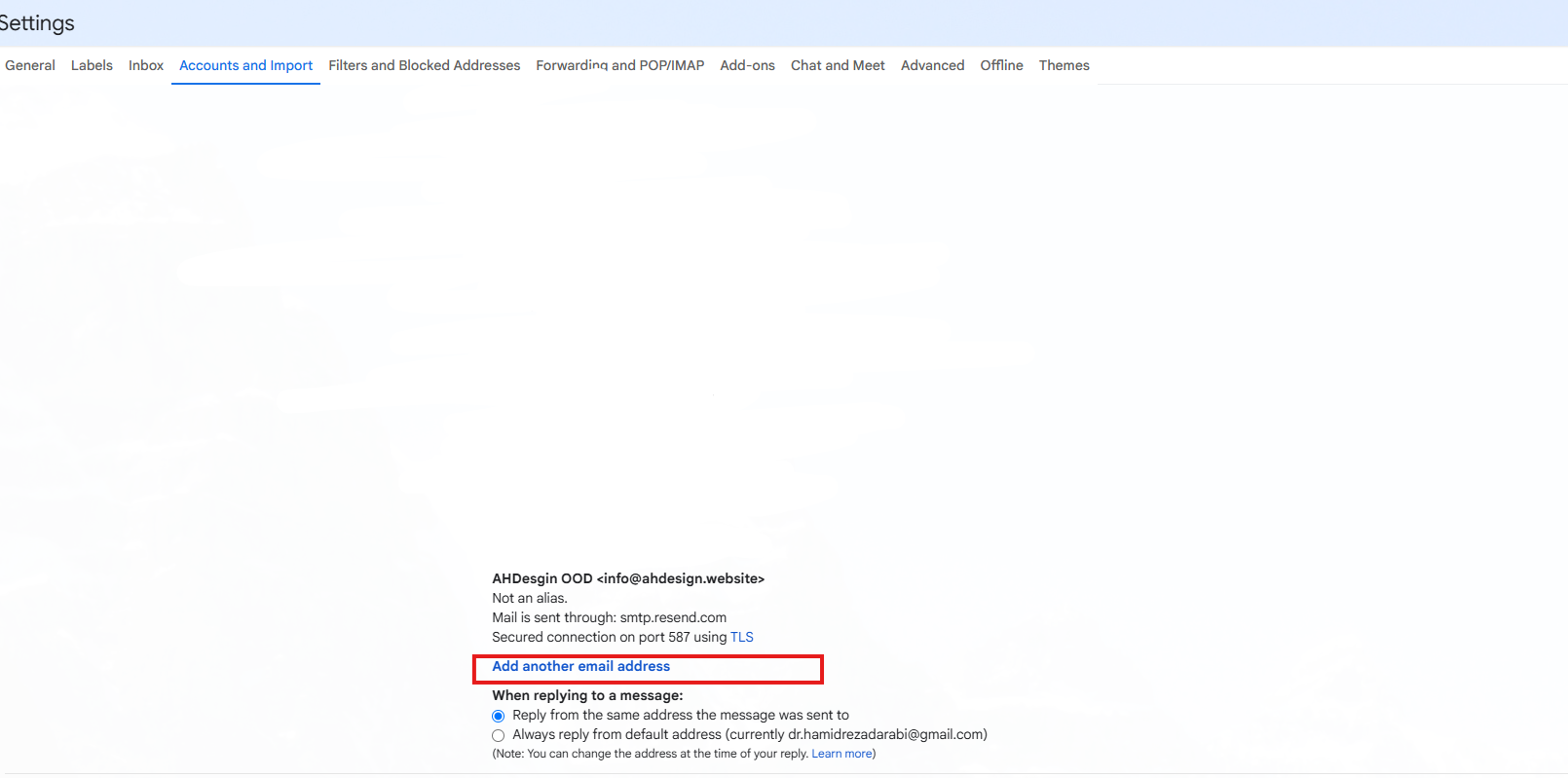
Go to Gmail → Settings → Accounts and Import. Then, select "Add another email address" under Send Mail As.
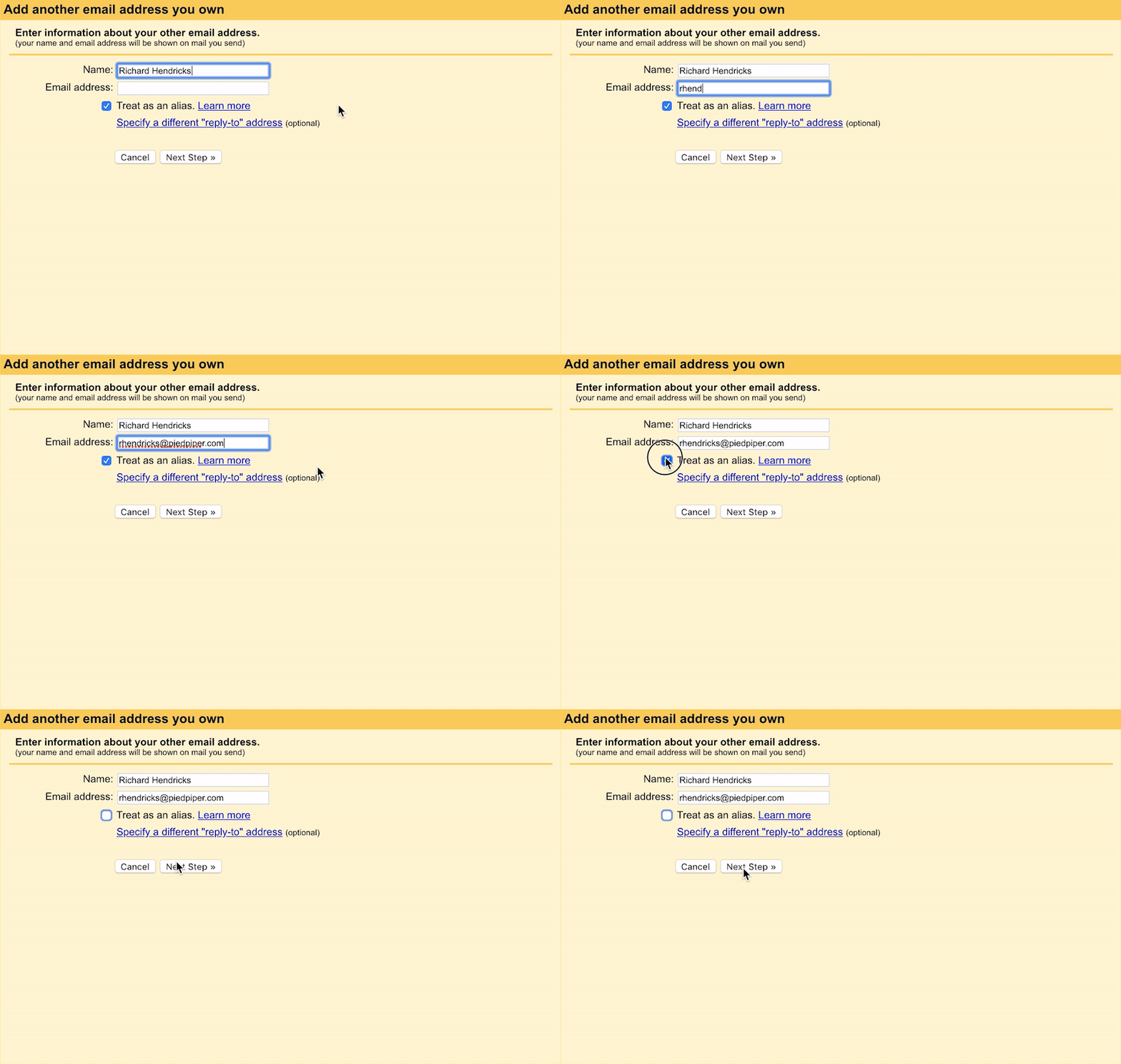
Set your forwarded email (your alias) and your sender's name. Untick "treat as an alias".
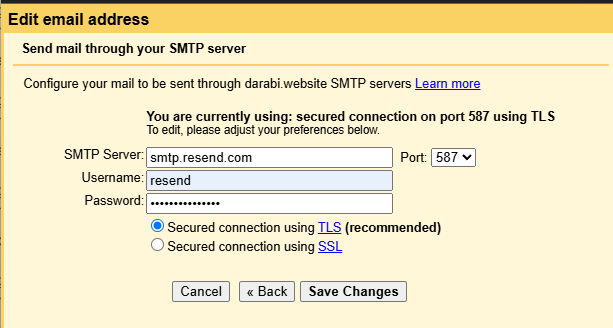
smtp.resend.com587resendPASTE_API_TOKEN_HEREYou will receive an email from Gmail asking you to confirm ownership with a code. Open the link, click Confirm, and you are all set!
Now you can select your alias in the From dropdown list when you compose a new message.
resend, and that the password was pasted in full with no spaces at either end.Gmail may block messages sent to your alias from the same Gmail account that you are forwarding to. Google detects a loop and drops the message. These show only in "Sent."
Try clearing your session or using another browser.
The "via Gmail" label appears when using Google's "Send mail as" — it's not removable.